Integrations can attach structured external information to a ticket, which is then displayed in the Qminder Service View alongside the visitor’s details. This is useful for showing contextual data from CRMs, EHRs, payment systems, or any other external platform — giving service clerks the information they need without switching between tools.
External data is for server-side integrations that display read-only information from external systems. For visitor-provided input fields that are collected during sign-in, see the extra fields in the Tickets overview.

API Endpoint

POST /v1/tickets/{ticketId}/external
Both POST and PUT are accepted with identical behavior.

Parameters

Parameters are sent as form-encoded fields (not a JSON body). The data field contains a JSON string, which must be URL-encoded.
ParameterTypeRequiredDescription
providerstringYesUnique identifier for your integration (e.g., "salesforce", "epic"). Max 100 characters.
titlestringYesDisplay title shown as the section header in the Service View. Max 100 characters.
datastringYesJSON string conforming to the data schema described below.

Example Request

curl -X POST https://api.qminder.com/v1/tickets/12345/external \
  -H "X-Qminder-REST-API-Key: YOUR_SECRET_API_KEY" \
  -d "provider=my-crm" \
  -d "title=Patient Info" \
  --data-urlencode 'data={
    "fields": [
      {
        "type": "message",
        "content": "ALLERGY ALERT: Penicillin — Severe",
        "importance": "warning"
      },
      { "type": "text", "title": "Patient Name", "value": "Maria Schmidt" },
      { "type": "email", "title": "Contact Email", "value": "maria.schmidt@example.com" },
      {
        "type": "list",
        "title": "Recent Visits",
        "items": [
          {
            "title": "Annual Checkup",
            "text": "Dr. Patel",
            "url": "https://portal.example.com/doc/7391",
            "footer": "Internal Medicine",
            "timestamp": "2026-01-10"
          }
        ]
      }
    ]
  }'
Response (200 OK):
{"statusCode": 200}

Data Structure

The data parameter must be a JSON string containing an object with a fields array:
{
  "fields": []
}
Three categories of fields are supported: message, textual (text, email, phoneNumber), and list. You can mix and combine them freely within the fields array.

Message Fields

Displays a colored alert banner. Use messages to highlight important information that clerks should see immediately.
PropertyTypeRequiredDescription
typestringYesMust be "message"
contentstringYesThe message text to display
importancestringYes"error", "warning", or "info"
The importance level controls the visual styling: error — red background, for critical alerts:
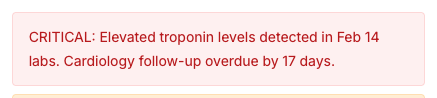
{ "type": "message", "content": "CRITICAL: Elevated troponin levels detected in Feb 14 labs. Cardiology follow-up overdue by 17 days.", "importance": "error" }
Error message banner warning — orange background, for important notices:
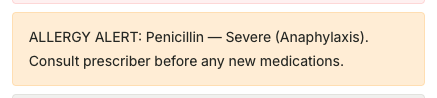
{ "type": "message", "content": "ALLERGY ALERT: Penicillin — Severe (Anaphylaxis). Consult prescriber before any new medications.", "importance": "warning" }
Warning message banner info — gray background, for general information:
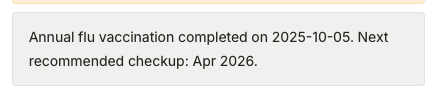
{ "type": "message", "content": "Annual flu vaccination completed on 2025-10-05. Next recommended checkup: Apr 2026.", "importance": "info" }
Info message banner

Textual Fields

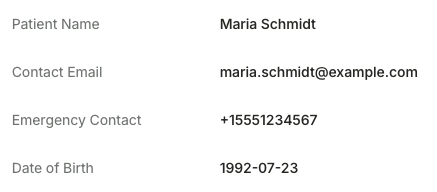
Displays a key-value row. Three subtypes are available: text for plain text, email for email addresses, and phoneNumber for phone numbers.
PropertyTypeRequiredDescription
typestringYes"text", "email", or "phoneNumber"
titlestringYesLabel displayed on the left side
valuestringYesValue displayed on the right side
{ "type": "text", "title": "Patient Name", "value": "Maria Schmidt" }
{ "type": "email", "title": "Contact Email", "value": "maria.schmidt@example.com" }
{ "type": "phoneNumber", "title": "Emergency Contact", "value": "+15551234567" }
Textual fields displayed as key-value rows

List Fields

Displays a titled section with a collection of items. Each item has a required title and optional metadata.
PropertyTypeRequiredDescription
typestringYesMust be "list"
titlestringYesSection header (displayed in uppercase)
itemsarrayYesArray of list item objects
List item properties:
PropertyTypeRequiredDescription
titlestringYesBold item title
textstringNoDescription text below the title
urlstringNoClickable link displayed below the title
footerstringNoDisplayed as a tag/badge pill
timestampstringNoDate in YYYY-MM-DD format, displayed below other content
A list item with all optional properties:
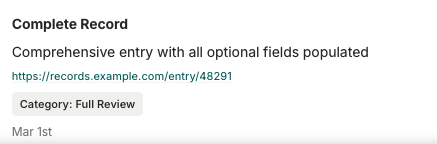
{
  "title": "Complete Record",
  "text": "Comprehensive entry with all optional fields populated",
  "url": "https://records.example.com/entry/48291",
  "footer": "Category: Full Review",
  "timestamp": "2026-03-01"
}
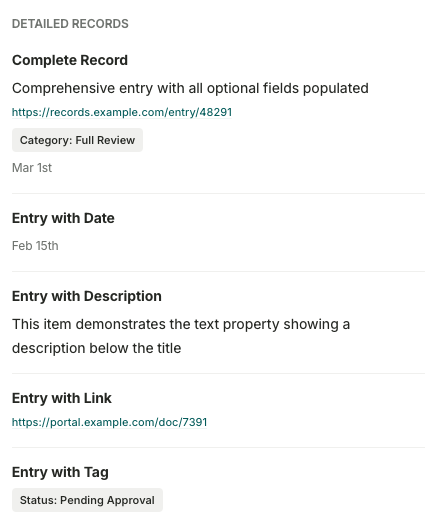
List item showing all optional properties A complete list field with multiple items demonstrates different combinations:
{
  "type": "list",
  "title": "Detailed Records",
  "items": [
    {
      "title": "Complete Record",
      "text": "Comprehensive entry with all optional fields populated",
      "url": "https://records.example.com/entry/48291",
      "footer": "Category: Full Review",
      "timestamp": "2026-03-01"
    },
    { "title": "Entry with Date", "timestamp": "2026-02-15" },
    { "title": "Entry with Description", "text": "This item demonstrates the text property showing a description below the title" },
    { "title": "Entry with Link", "url": "https://portal.example.com/doc/7391" },
    { "title": "Entry with Tag", "footer": "Status: Pending Approval" }
  ]
}
Complete list field with multiple varied items A minimal list with just a title and one item:
{ "type": "list", "title": "Pending Tasks", "items": [{ "title": "Schedule follow-up appointment" }] }
Minimal list field

Key Behaviors

  • Upsert semantics: One record per (ticketId, provider) pair. Calling the endpoint again with the same provider replaces the previous data entirely.
  • Multiple providers: A single ticket can have external data from many providers (e.g., both "salesforce" and "epic"). Each appears as a separate section in the Service View.
  • Schema validation: The data JSON is validated server-side. Invalid structures or unknown properties return a 400 error.
  • Real-time updates: After storing, the Service View updates immediately — no page refresh needed.

Reading External Data

External data attached to a ticket can be read back via the GraphQL API using the external field on the Ticket type. The data field returns a JSON scalar — a parsed JSON object matching the structure you originally sent:
query {
  ticket(id: "12345") {
    external {
      provider
      title
      data
      created
    }
  }
}

Error Responses

StatusDescriptionExample
400Invalid JSON"Data is not valid JSON object"
400Schema validation failed"Data does not match the schema"
403Non-SECRET API key usedForbidden
404Ticket not found"Ticket with id 12345 not found"